
Loading Your Own Genome
Last updated on 2026-09-03 | Edit this page
Overview
Questions
- How do I view my own genome, rather than one of IGV’s built-in hosted genomes?
- What do I lose by loading a genome from a FASTA file instead of one of IGV’s packaged genomes?
Objectives
- Load a reference genome from a local FASTA file.
- Add a gene annotation track from a local BED file.
- Explain why loading a genome from a FASTA file alone does not give you gene names or a cytoband ideogram.
The rest of this lesson uses your own local copy of chromosome 1
rather than data hosted on the IGV server, so from here on you will not
need an internet connection. This episode uses files from the
igvData folder you downloaded in Setup.
Clear out the previous session
Select File > New Session to clear the tracks and genome loaded in the previous episode.
Load a genome from a FASTA file
Select Genomes > Load Genome from File… (note:
this is the Genomes menu, not the File
menu), then browse to igvData/genome/ and open
chr1.fasta. This file contains chromosome 1 from human
genome build hg18.
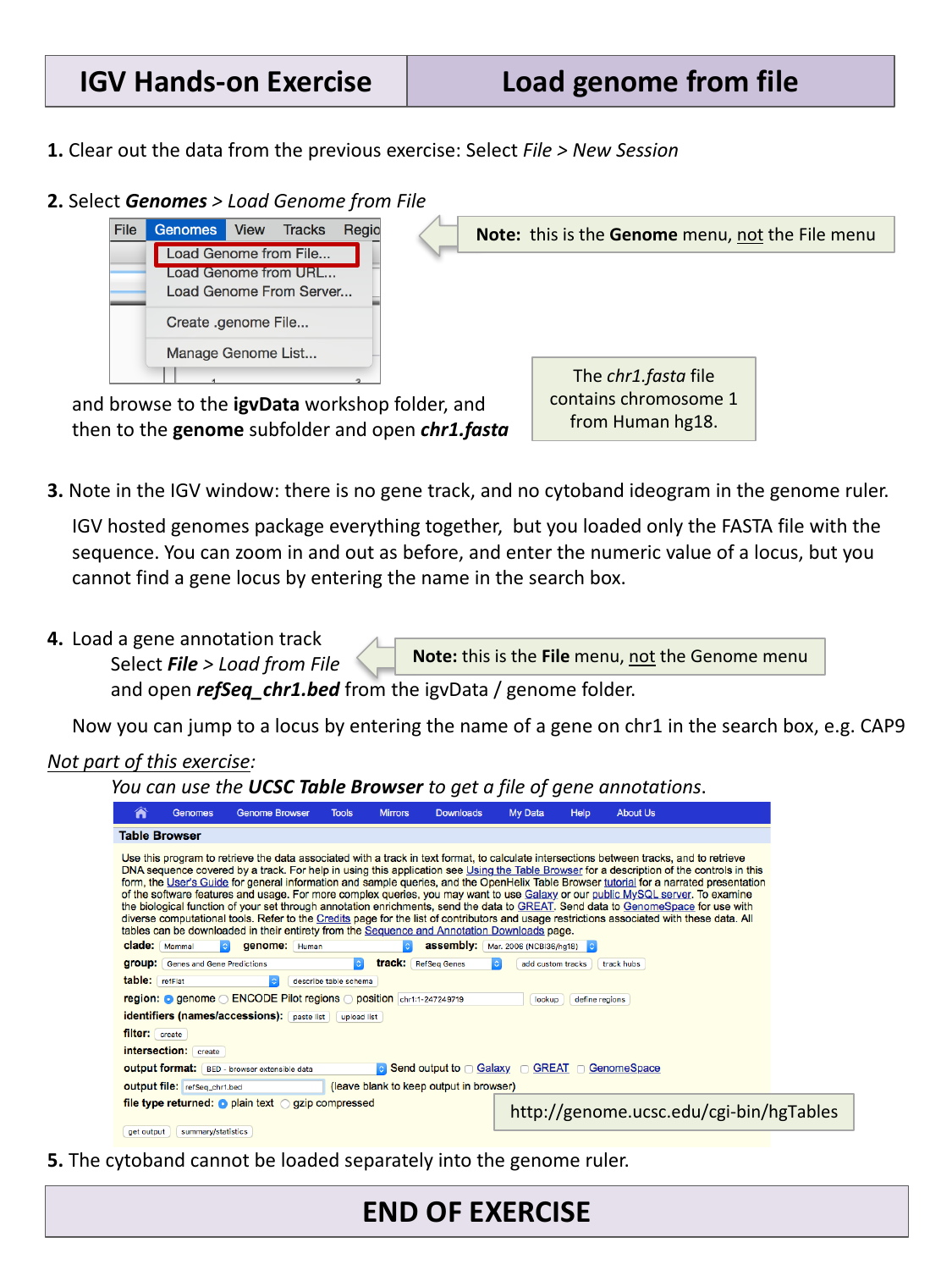
Notice that there is now no gene track and no cytoband ideogram in the genome ruler. IGV’s hosted genomes package a reference sequence together with a default gene annotation and cytoband data, but here you loaded only the FASTA sequence — so IGV has nothing else to show yet. You can still zoom in and out and enter numeric coordinates, but you cannot yet jump to a locus by gene name, because IGV does not know where any genes are.
Add a gene annotation track
Select File > Load from File… (note: this time it
is the File menu), and open
refSeq_chr1.bed from igvData/genome/.
Now you can jump to a locus by typing the name of a gene on
chromosome 1 into the search box, for example CAP9.
Jump to a gene by name
Before loading refSeq_chr1.bed, try typing a gene name
(e.g. CAP9) into the search box and clicking
Go. What happens? Now load refSeq_chr1.bed
and try again.
Before the BED file is loaded, IGV has no record of where any genes
are located, so searching by gene name fails (or is silently ignored) —
you can only navigate using numeric coordinates. After loading
refSeq_chr1.bed, IGV can match the gene name against the
annotation track and jump straight to it.
Where do gene annotation files come from?
The refSeq_chr1.bed file used here was generated from
the UCSC Table
Browser, a web tool for retrieving data associated with a genome
assembly (gene models, regulatory regions, and more) as a downloadable
file. This is a common way to obtain a gene annotation track for a
genome that is not already bundled with one.
Note that, unlike the gene track, the cytoband ideogram cannot be loaded separately — it is only available for genomes that package it in already.
- Load a custom genome sequence with Genomes > Load Genome from File…; load additional annotation tracks (genes, features) with File > Load from File….
- A genome loaded from a bare FASTA file has no gene names or cytoband ideogram until you add that information yourself as separate tracks.