
Viewing Variants and Genotypes
Last updated on 2026-09-03 | Edit this page
Overview
Questions
- How does IGV display variants and genotypes from a VCF file?
- How can I compare variant patterns across groups of samples, such as populations?
Objectives
- Load a multi-sample VCF file together with its sample metadata.
- Distinguish the variant sites panel from the per-sample genotypes panel.
- Interpret the allele and genotype color coding IGV uses.
- Group and compare genotypes across sample populations.
Why this dataset?
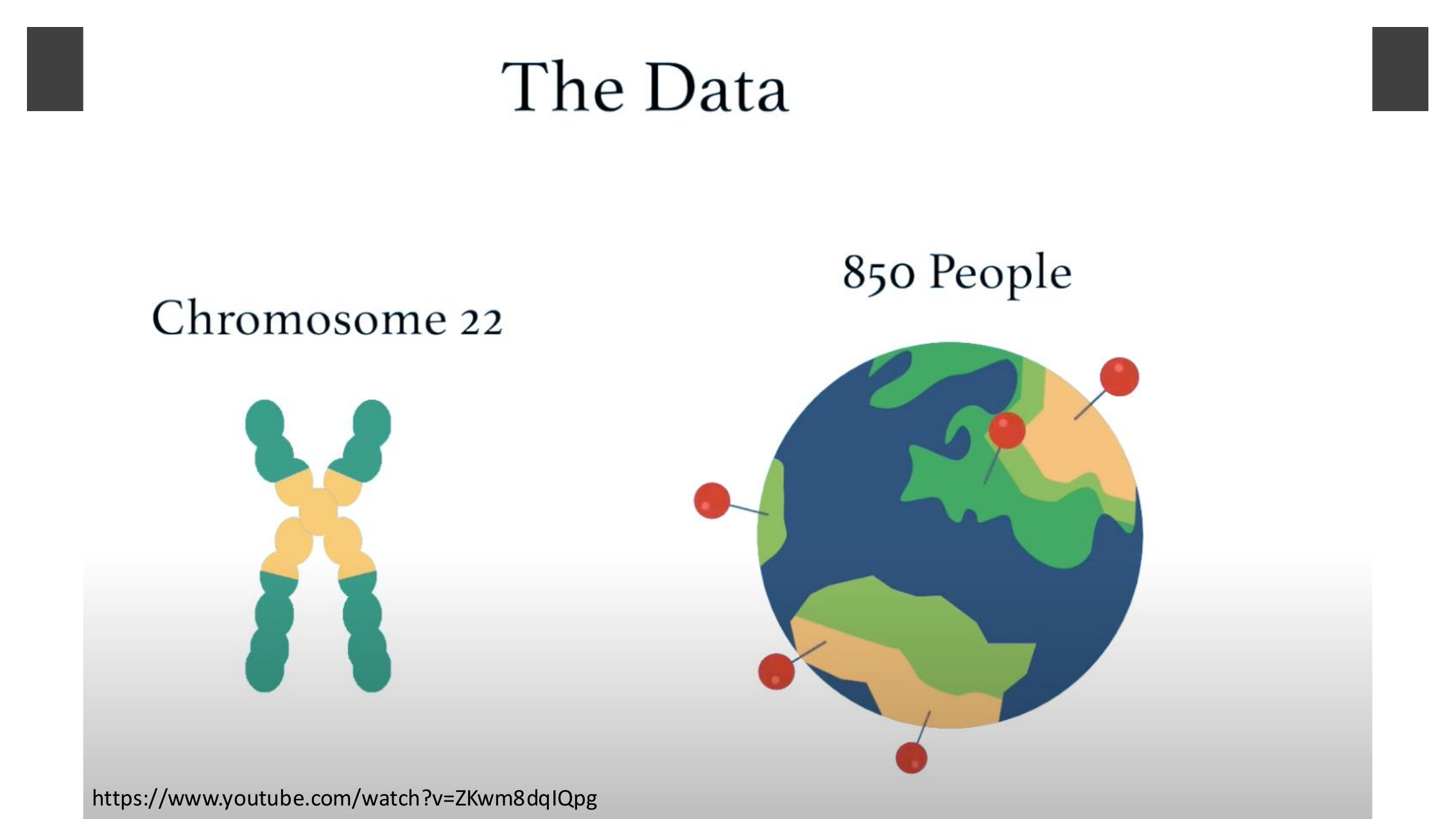
The VCF session you will load contains variant calls on human chromosome 22 for about 850 people sampled from populations around the world — a subset of the 1000 Genomes Project dataset.
Zoomed in on the APOL1 gene, one particular marker,
rs9622363, tells a striking evolutionary story.
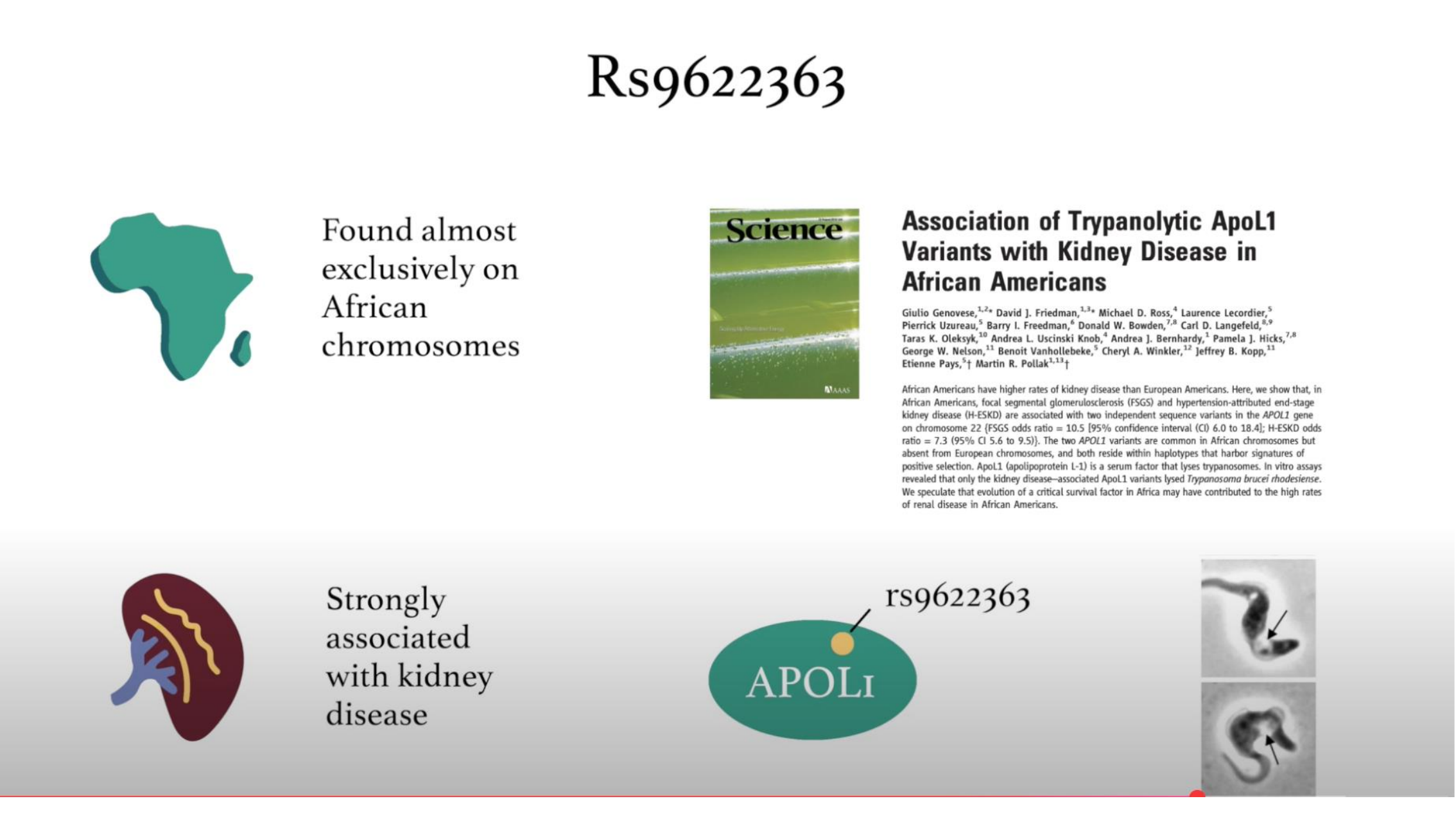
APOL1 encodes a protein that can lyse the parasite that causes African sleeping sickness, and coding variants in the gene — found almost exclusively on chromosomes of African ancestry — strengthen that protective effect. But the same variants come at a cost: Genovese and colleagues showed they are also strongly associated with elevated rates of kidney disease in African Americans (Genovese et al., “Association of Trypanolytic ApoL1 Variants with Kidney Disease in African Americans,” Science, 2010). This is exactly the kind of population-specific signal you will be able to spot for yourself later in this episode by grouping genotypes by population.
Load the session
This exercise uses a pre-built IGV session that loads a population
VCF file together with sample attribute information (population and sex
for each sample). Select File > Open Session…,
navigate to igvData/vcf/, and open
vcf_session.xml.
Observe the variant and genotype panels
IGV splits VCF data into two panels:
- a variant sites panel (one row) showing where variants are located along the genome, and
- a genotypes panel (one row per sample) showing each sample’s genotype at every variant site.
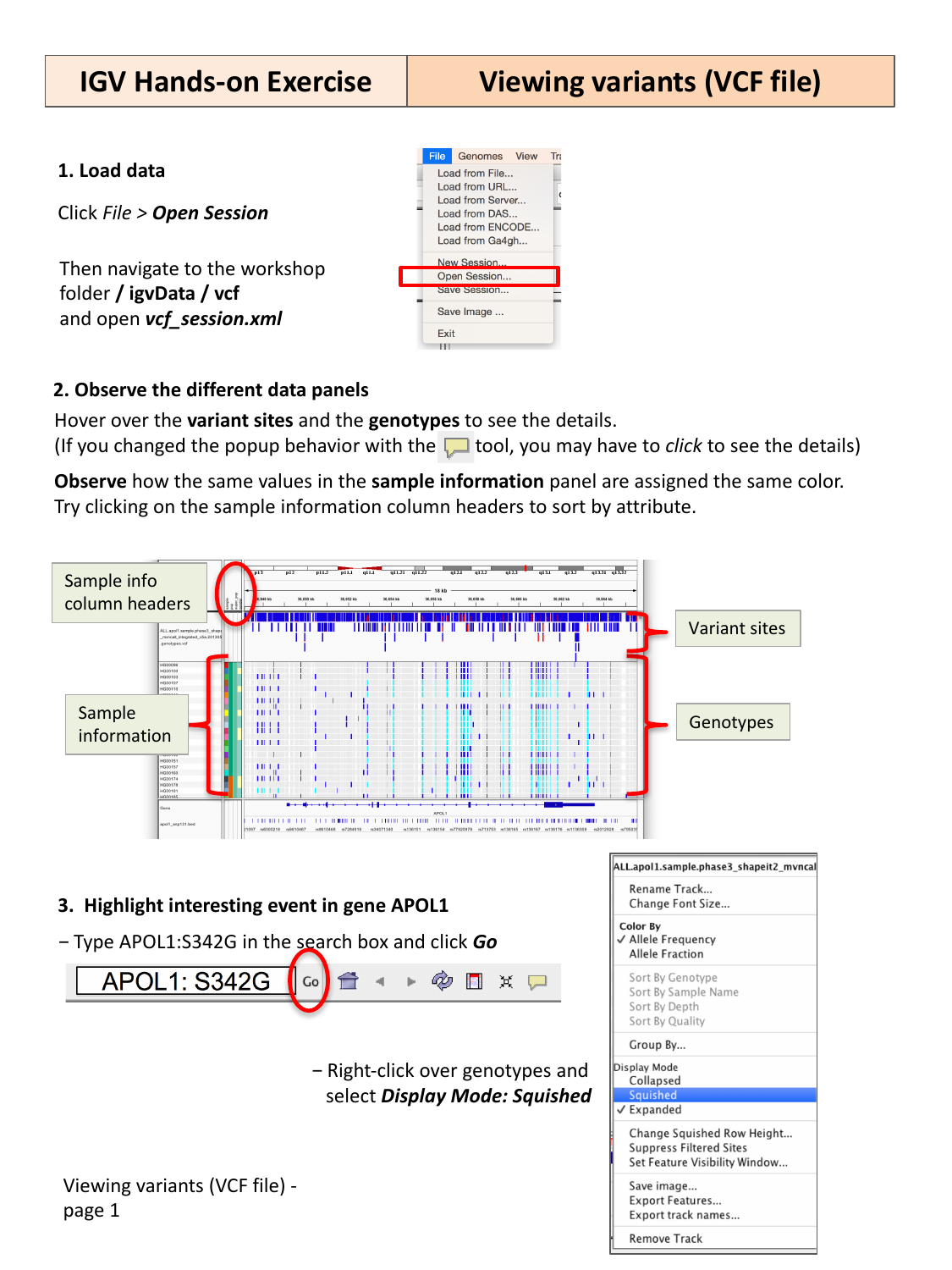
Hover over a variant site or a genotype cell to see its details in a popup. (If you changed the popup behavior earlier to “on click”, click instead of hovering.)
Both panels use color to summarize a lot of information at a glance:
-
In the variant sites panel, blue marks the reference allele and red marks the alternate allele at each site.
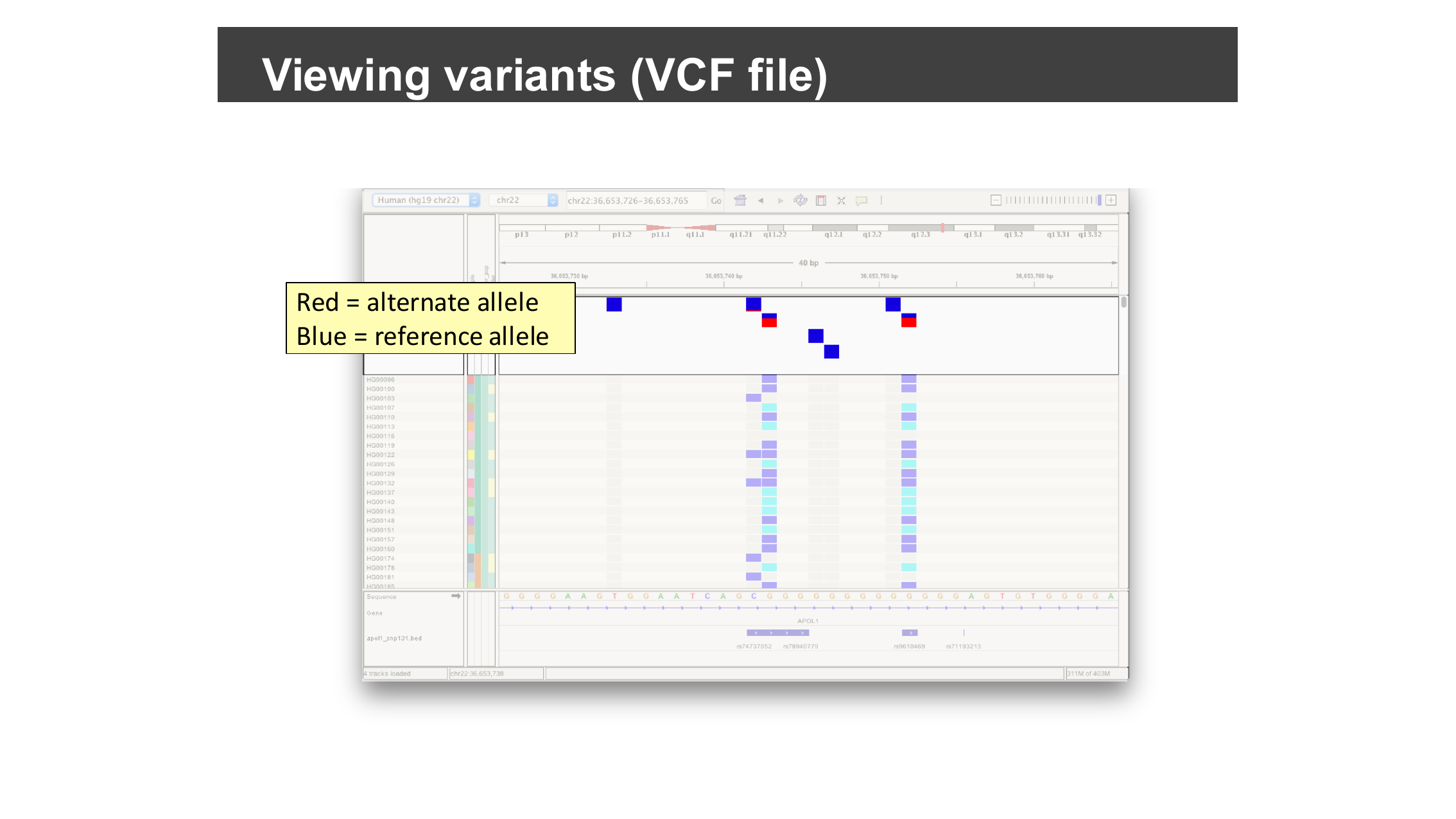 Zoomed-in variant sites: blue squares are the reference allele, red squares are the alternate allele.
 -
In the genotypes panel, cyan marks a homozygous (alternate/alternate) genotype, blue marks heterozygous (reference/alternate), and grey marks homozygous reference.
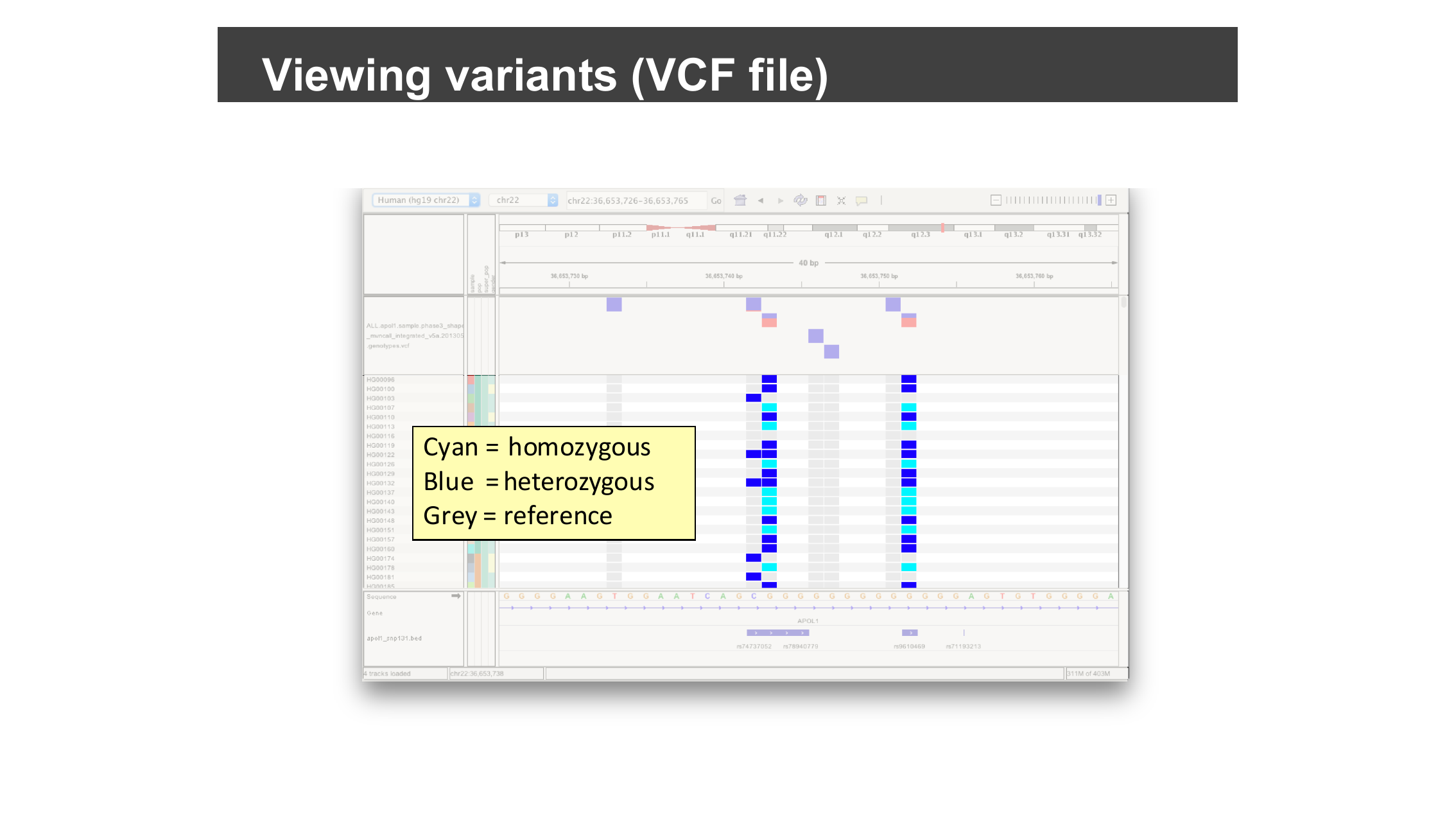 Zoomed-in genotypes: cyan for homozygous alternate, blue for heterozygous, grey for homozygous reference.
A narrow sample information column to the left of the genotypes uses color to represent each sample’s metadata (e.g. population). Samples sharing the same value are shown in the same color. Try clicking on the sample information column headers to sort samples by an attribute.
Where does the sample information come from?
Sample metadata is defined in an auxiliary tab-delimited file,
separate from the VCF itself: the first row names the metadata columns
(e.g. sample, pop, super_pop,
gender), and the first column holds sample names that must
exactly match the sample names in the VCF. The pre-built session you
loaded already references this file, but you can add the same kind of
sample-information file to your own VCF tracks.
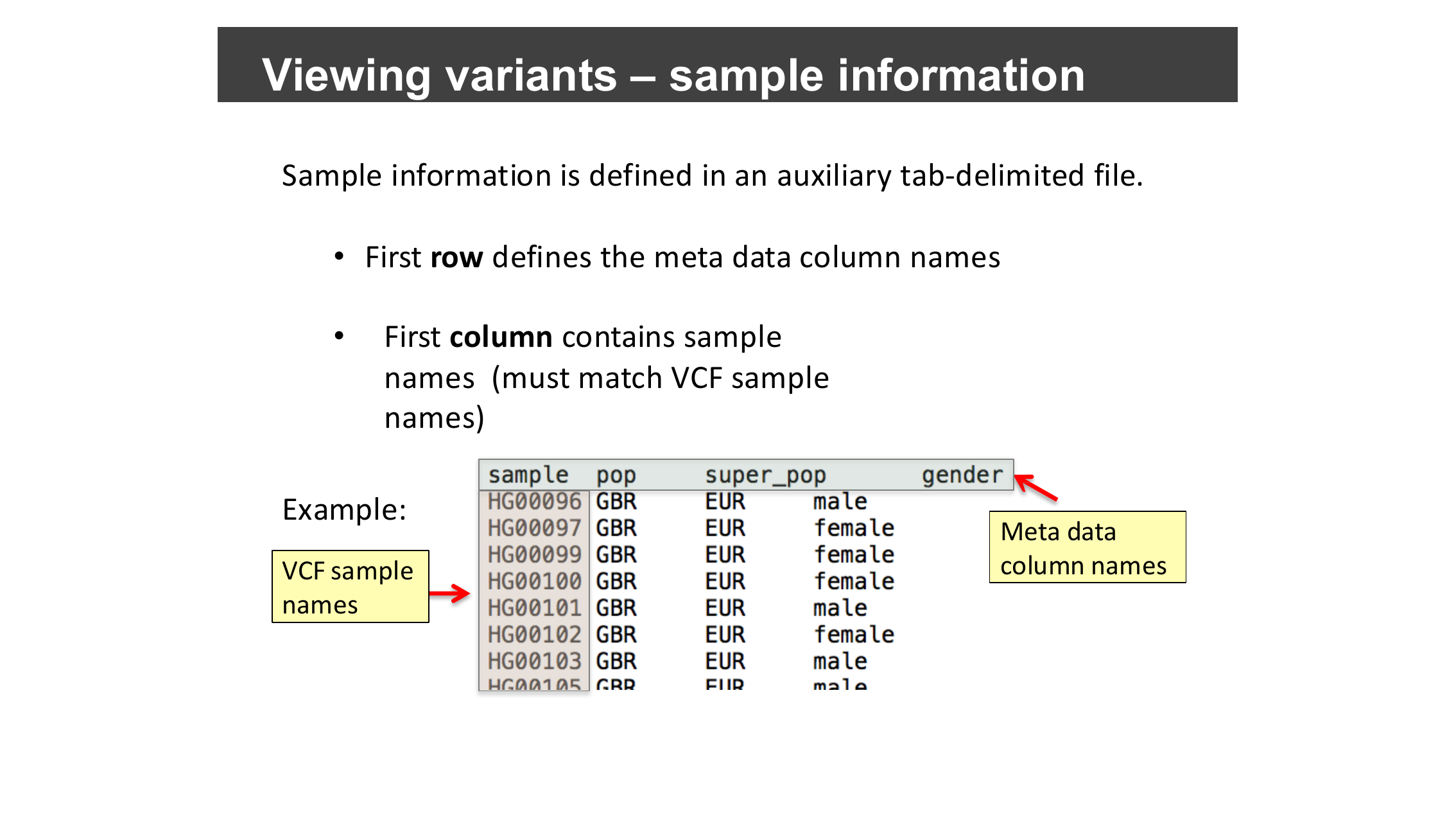
sample column matching the VCF’s sample
names and additional metadata columns.Highlight variants in a gene of interest
Type APOL1:S342G into the search box and click
Go to jump to a specific amino-acid-level variant in
the APOL1 gene.
Right-click over the genotypes track and select Display Mode: Squished to make room for more samples on screen at once.
Group samples by population
Right-click over the genotypes track again, select Group By…, and choose the super_pop attribute.
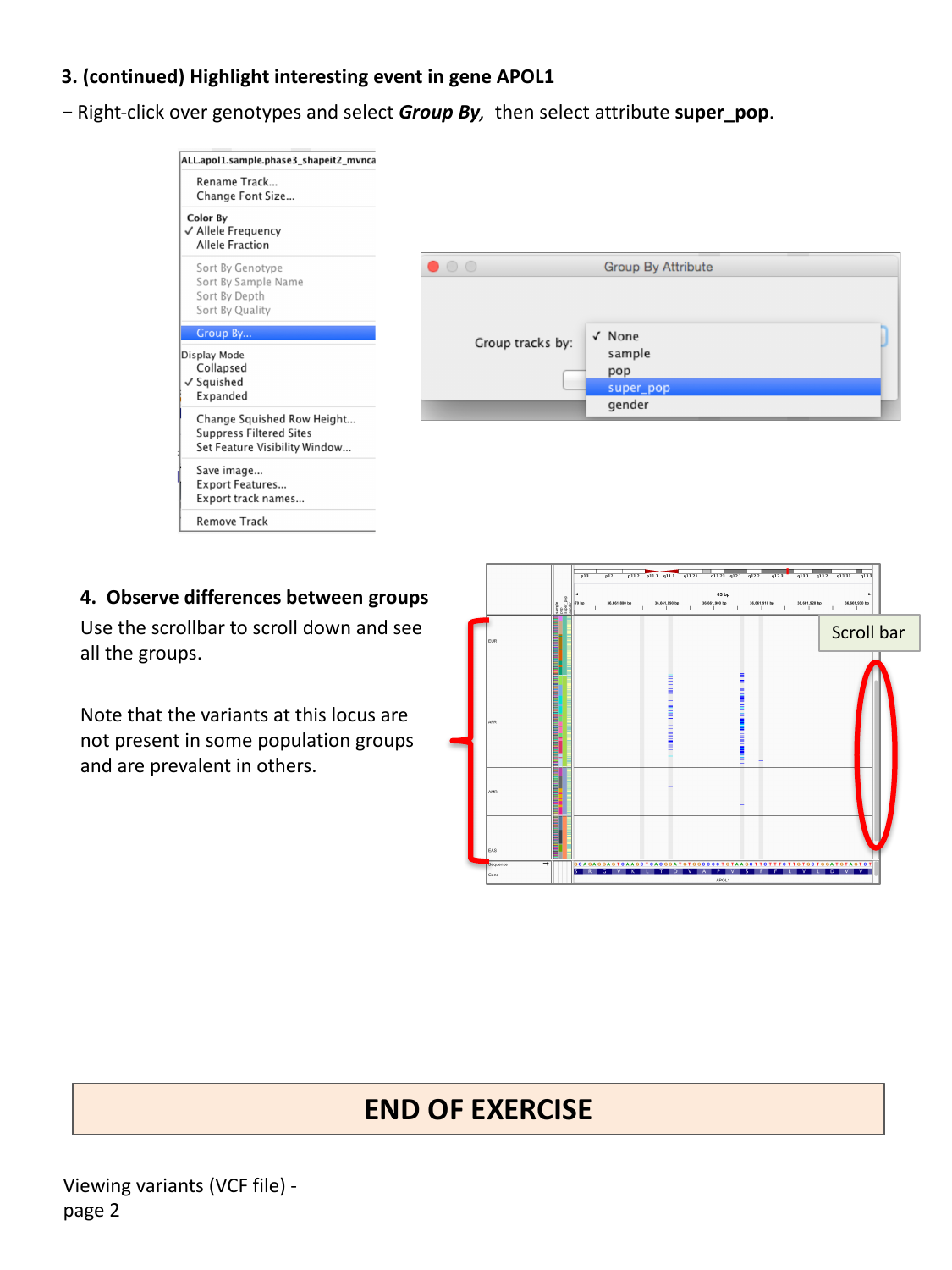
Use the scrollbar to scroll down through all the population groups.
Compare variant frequency across populations
At the APOL1:S342G locus, scroll through the population
groups you just created. Is this variant equally common in every
population group?
No — the variants at this locus are not evenly distributed. They are absent, or nearly absent, in some population groups, and much more prevalent in others, consistent with the African-specific selective history of APOL1 variants described earlier in this episode. This kind of population-stratified pattern is common for variants under different selective pressures (or genetic drift) in different ancestral populations, and grouping genotypes by population makes this kind of pattern immediately visible, without needing to compute allele frequencies separately for each group.
Coloring genotypes
The genotype track’s right-click menu also offers Color By > Allele Frequency or Allele Fraction, and options to sort by genotype, sample name, depth, or quality — useful alternatives or complements to grouping by a sample attribute.
Watch: IGV VCF Basics
- A VCF track in IGV has a variant sites panel and a per-sample genotypes panel; a sample information color bar (driven by an auxiliary tab-delimited file) can show sample metadata such as population.
- Variant sites are colored blue (reference allele) / red (alternate allele); genotypes are colored grey (homozygous reference) / blue (heterozygous) / cyan (homozygous alternate).
- Search for a variant using
gene:protein-changesyntax (e.g.APOL1:S342G) as well as by coordinate or gene name. - Grouping genotypes by a sample attribute (e.g. population) makes it easy to compare variant patterns across groups of samples.